
Calendar & Events
Month, week or day — your events, tasks and plans, with Google Calendar alongside.
Calendar is one of the main tabs on your phone and in the web sidebar. Your events sit next to your tasks, grocery lists and occasions, so the whole day is in one timeline — and with Gmail connected, Yuki adds the bookings and invites it finds in your email.
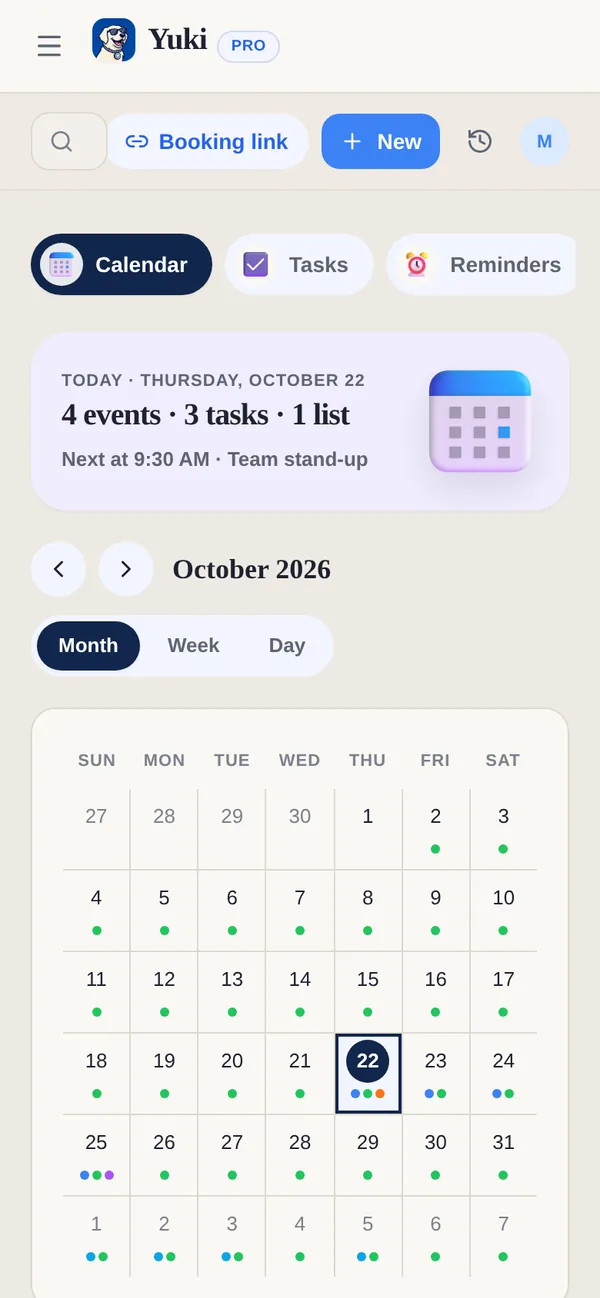
Day, Week and Month
Switch between Day, Week and Month at the top. Tap a day in Week or Month to open it in Day view, where everything is laid out in time order. On the web, Calendar also has Tasks and Reminders views of the same day.
Add an event
- 1Tap + (New on the web) and choose Calendar event — or + Event on the day you are looking at.
- 2Set the title, date and time (or all day), and any details.
- 3Add a reminder so Yuki nudges you ahead of time (Pro).
Google Calendar and your phone’s calendar
Connect your Google account and your Google Calendar events show in Yuki’s Calendar next to Yuki’s own. On Pro, an event you create in Yuki can also send a copy to Google Calendar. On an iPhone, Yuki’s events can go to Apple Calendar too.
Let people book you
The Booking link button in the Calendar header is where you share a page people can book time with you on. See Booking links.
| Capability | Free | Pro |
|---|---|---|
| Create & manage events | Included | Included |
| See Google Calendar events in Yuki | Included | Included |
| Send a copy of an event to Google Calendar | — | Included |
| Events added from Gmail automatically | — | Included |
| Event and task reminders | — | Included |